Screen Test Controls
Use Screen Test Controls on your phone to operate Screen Test on a TV, monitor or projector without placing menus over the screen you are evaluating. Designed in a low-glare dark theme for dim calibration rooms, it lets you switch tests in one tap, open per-test settings from the cog button beside any test name, and inspect live refresh-rate telemetry right in your hand.
Features
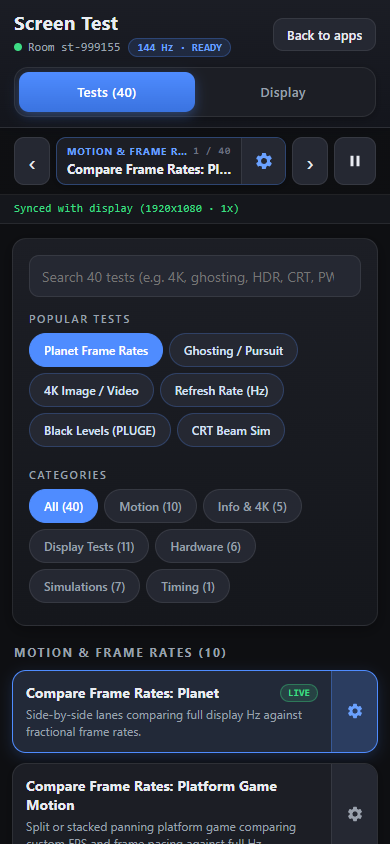
- Tests-First Navigation — Opens directly on Tests (40) with Popular Tests chips, category filters with counts, and live keyword search, paired with a dedicated Display tab for global screen controls.
- Now-Testing Bar with Settings Cog — Always displays the active test category, number (
1 / 40) and title. Step through tests with‹and›, tap the cog button right beside the named test to open its settings, or tap the Pause/Play button at any time. - Fast Test Switching and One-Tap Settings — Tap any test card to switch the TV immediately while staying in the test list for rapid comparisons, or tap the cog icon on the right side of any test card to jump straight into its settings and setup guide.
- Complete Per-Test Settings and Presets — Adjust speeds, lane counts, scenes, colors, pixel gaps, window sizes, bit depth, overdrive, CRT scan direction, backlight modes and 4K image/video sources, or apply one-tap presets and Reset Defaults.
- Collapsible Diagnostic Guide — Expand or collapse What To Look For & Setup Guide inside any test's settings for a structured breakdown of What This Tests, What To Look For and Recommended Setup.
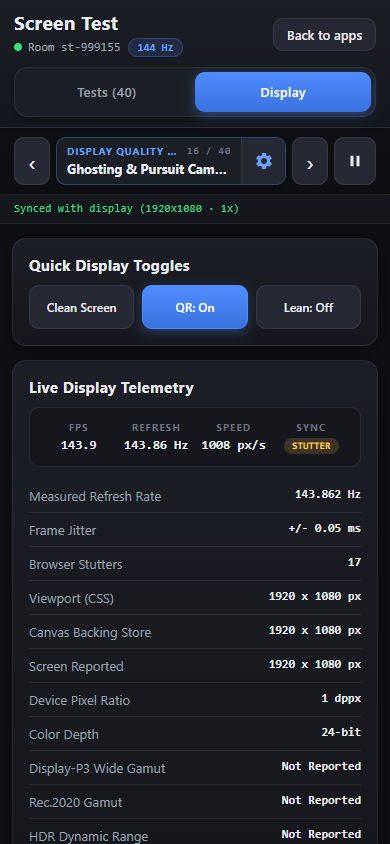
- Display Tab and Live Telemetry — Toggle Clean Screen, QR On/Off, Lean Mode, and 1:1 Native pixel scaling, read live FPS, refresh rate (Hz), motion speed and sync status, and inspect full display diagnostics.
- Back to apps — Return your phone controller to the RCWeb app launchpad without changing the room.
How to use it
- Launch Screen Test on your TV or monitor and scan its QR code with your phone (or open Screen Test from the RCWeb Remote Launchpad).
- On the Tests (40) screen, tap any Popular Test chip, filter by category, or search by keyword (such as
4K,ghosting,HDR,PWM,CRTorplanet), then tap any test to switch the display immediately. - Tap the cog icon to the right of the named test — either in the top bar or on any test card — to open that test's settings, presets and collapsible setup guide.
- Use the
‹and›arrows to step between tests or tap the Pause icon to freeze motion on the display. - Open the Display tab whenever you want Clean Screen, QR: Off, Lean Mode, 1:1 Native scaling, or live display telemetry.
Screenshots