Clock
Clock turns any RCWeb display into a room clock that can be changed from a phone or tablet.
Screenshot
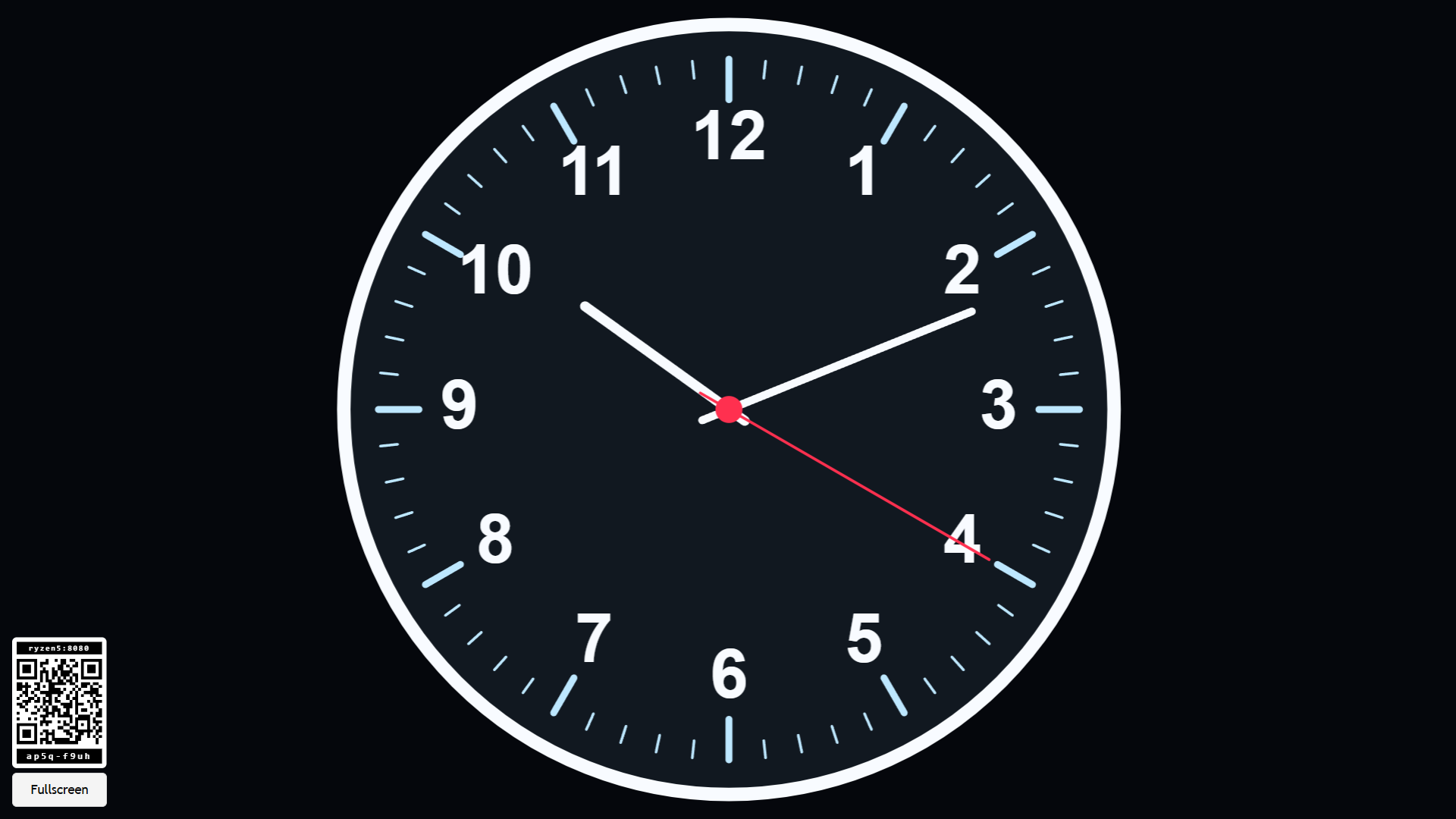
Open the viewer at /clock/?r=<room> on the screen you want everyone to see. The display shows only the active clock, a QR code for the controls, and a fullscreen button. Scan the QR code or open /clock-c/?r=<room> on a phone or tablet to choose the clock and adjust its settings.
Features
- Plain Clock: a clean digital clock with configurable font, size, colour, spacing, position, and optional date.
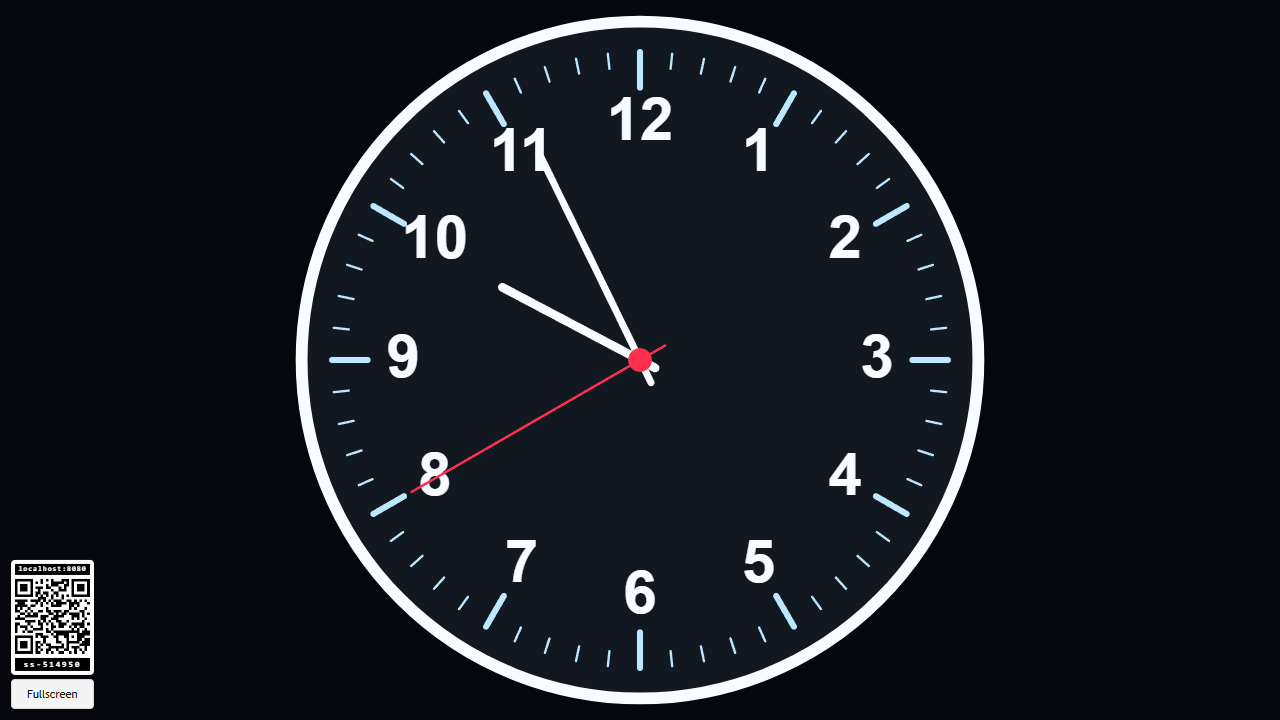
- Analog Clock: a round clock face with configurable size, colours, ticks, numbers, hand widths, second hand, and optional digital time.
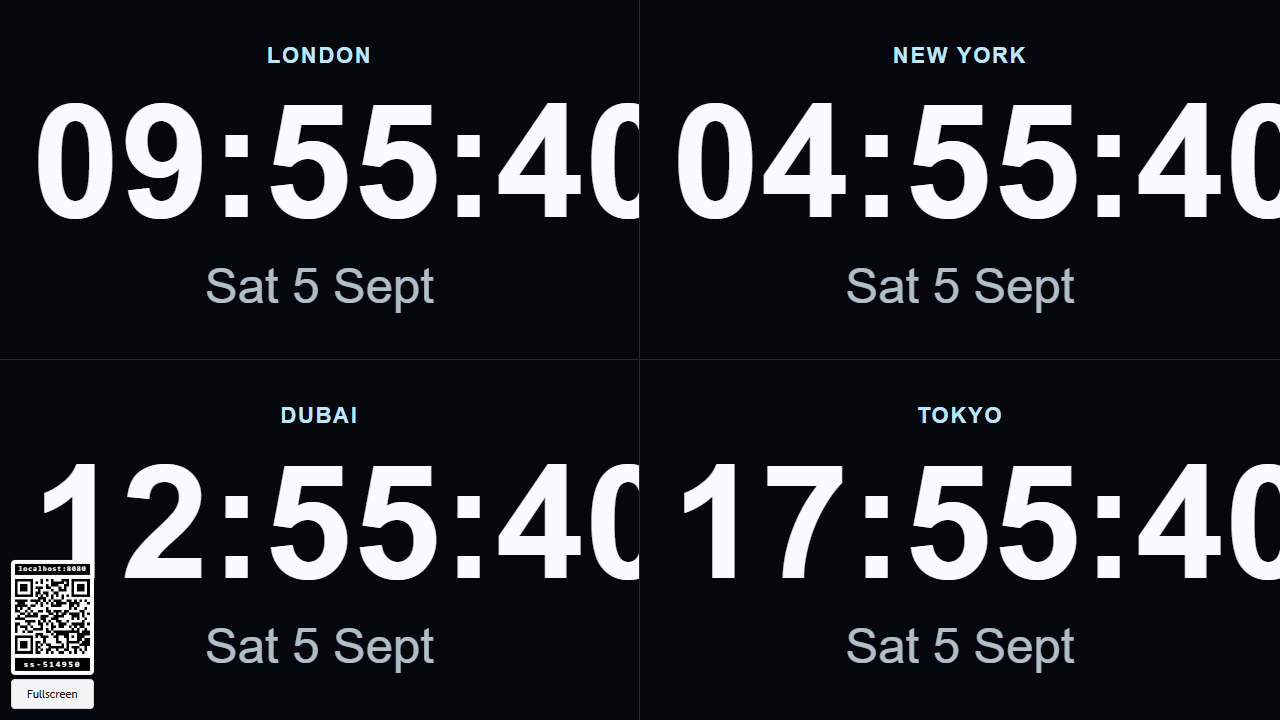
- World Time: a four-quarter digital display for comparing up to four locations at once. It uses location-based time zones internally, so daylight saving changes are handled by the browser while the display labels stay short.
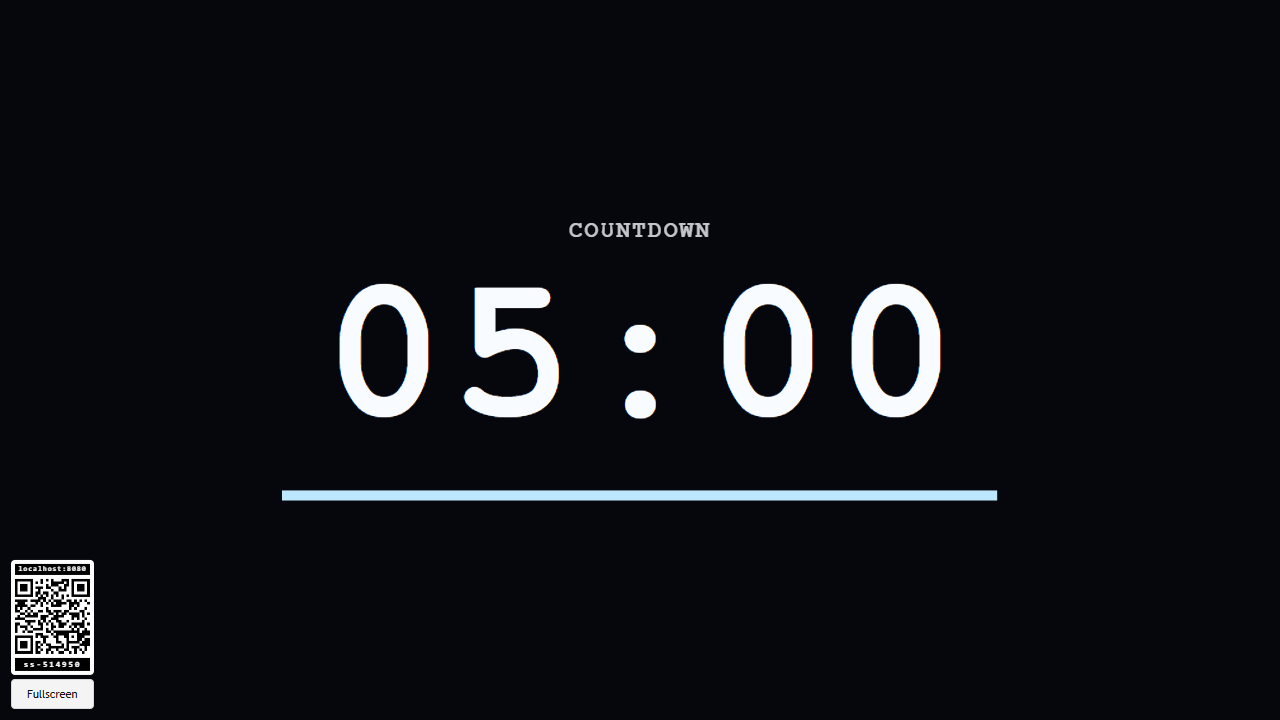
- Countdown Timer: a configurable countdown display with duration, start, pause, reset, label, font, colour, and progress options.
- Stopwatch: a configurable elapsed-time display with start, pause, lap, reset, font, colour, and hundredths options.
- Block Clock: the original falling block clock, where changed digits drop and collect at the bottom using physics.
- Flock Clock: the original flock clock, where animated character markers settle into readable digit shapes.
Saved Settings
The viewer saves the selected clock and its settings in the browser. If the main Clock app is closed and reopened on the same display browser, it restores the last selected clock, colours, sizing, and other options automatically.
Best Use
Use Clock for shared displays, wall screens, venue dashboards, classrooms, workshops, or any room where the clock should be visible without exposing controls on the main screen.
Screenshots