4K Test Controls
Switch a separate 4K Test display between a 4K image and a 4K video from your phone. Compare their sharpness on the main screen without returning to its browser controls each time.
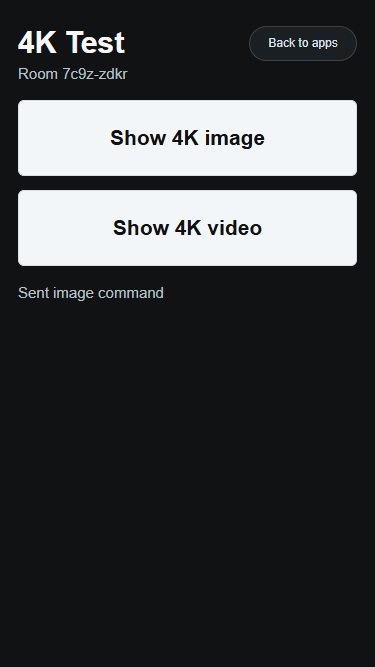
Features
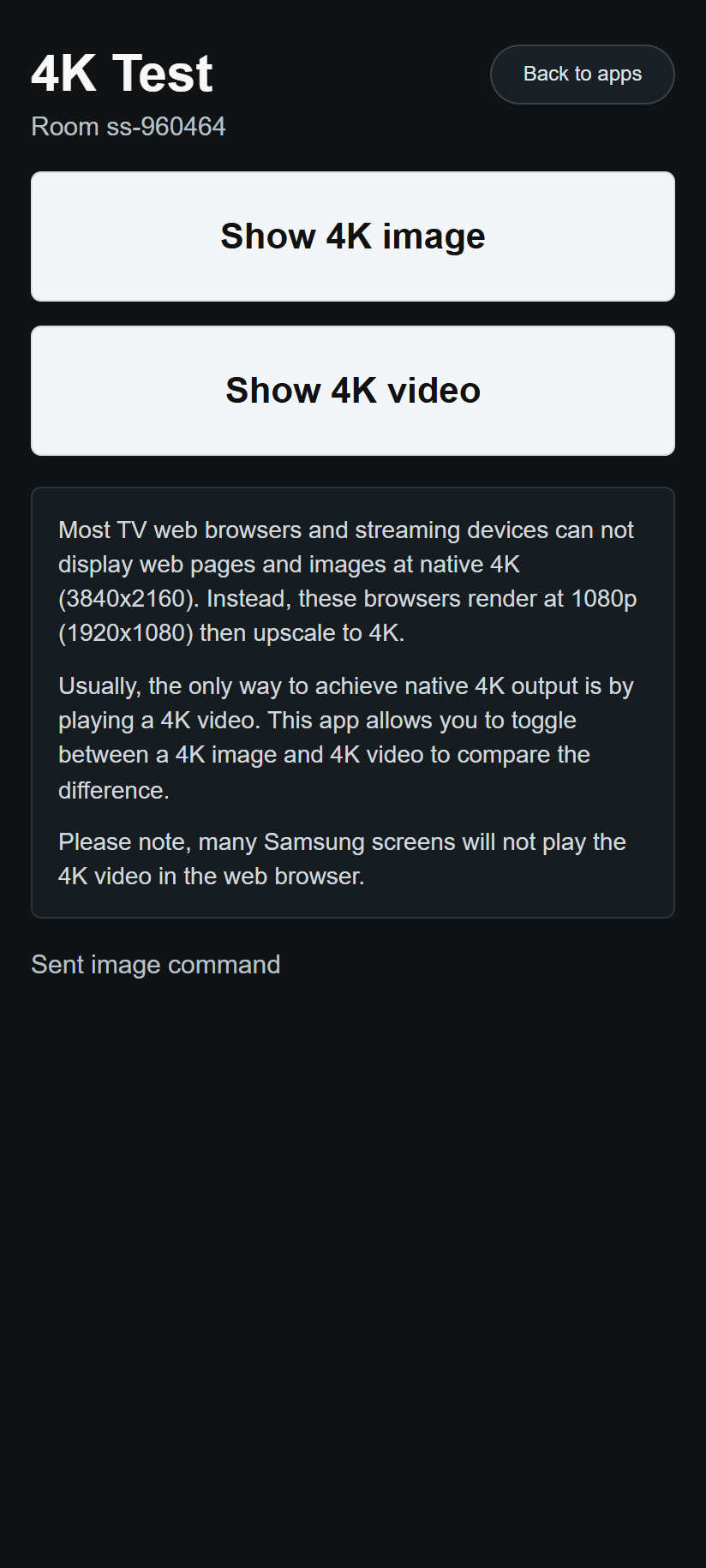
- Show 4K image selects the still test pattern.
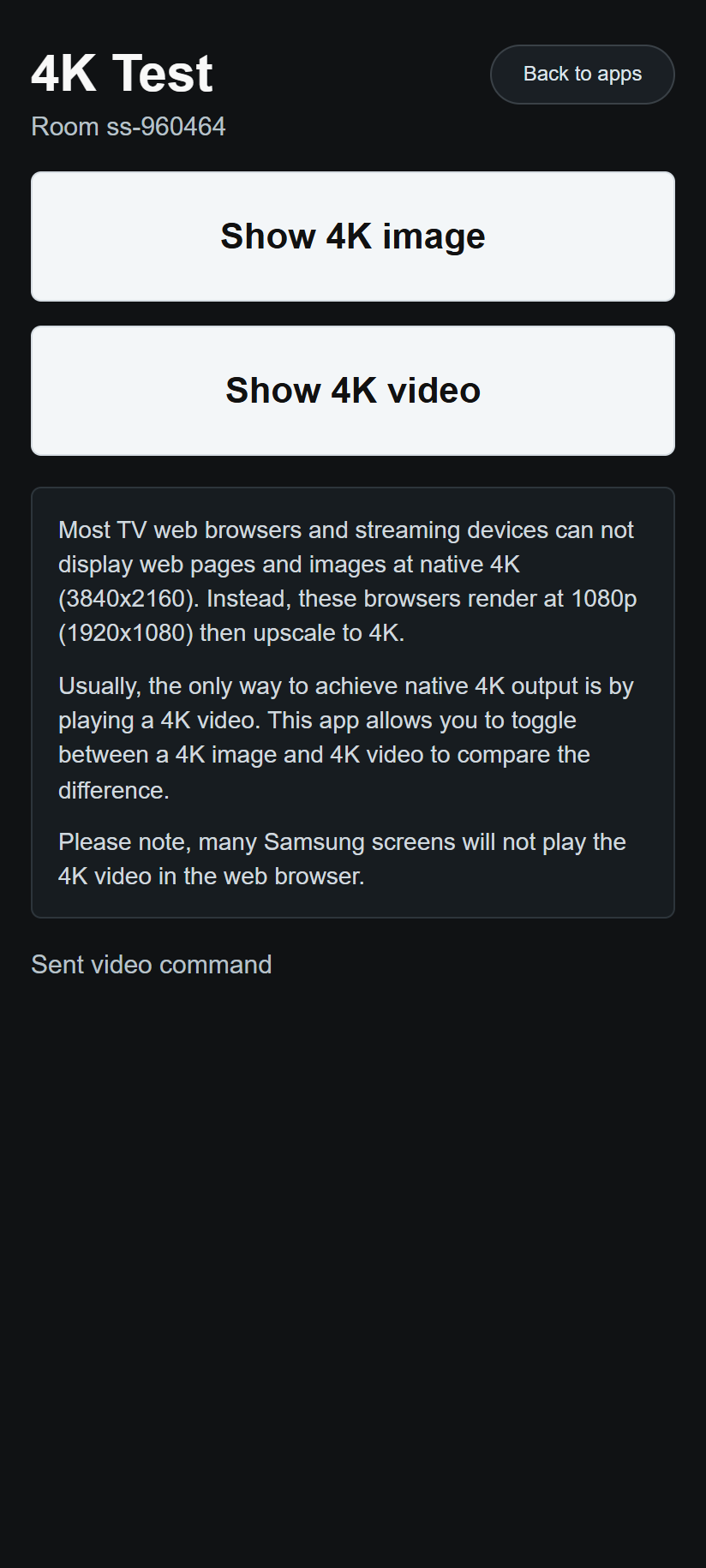
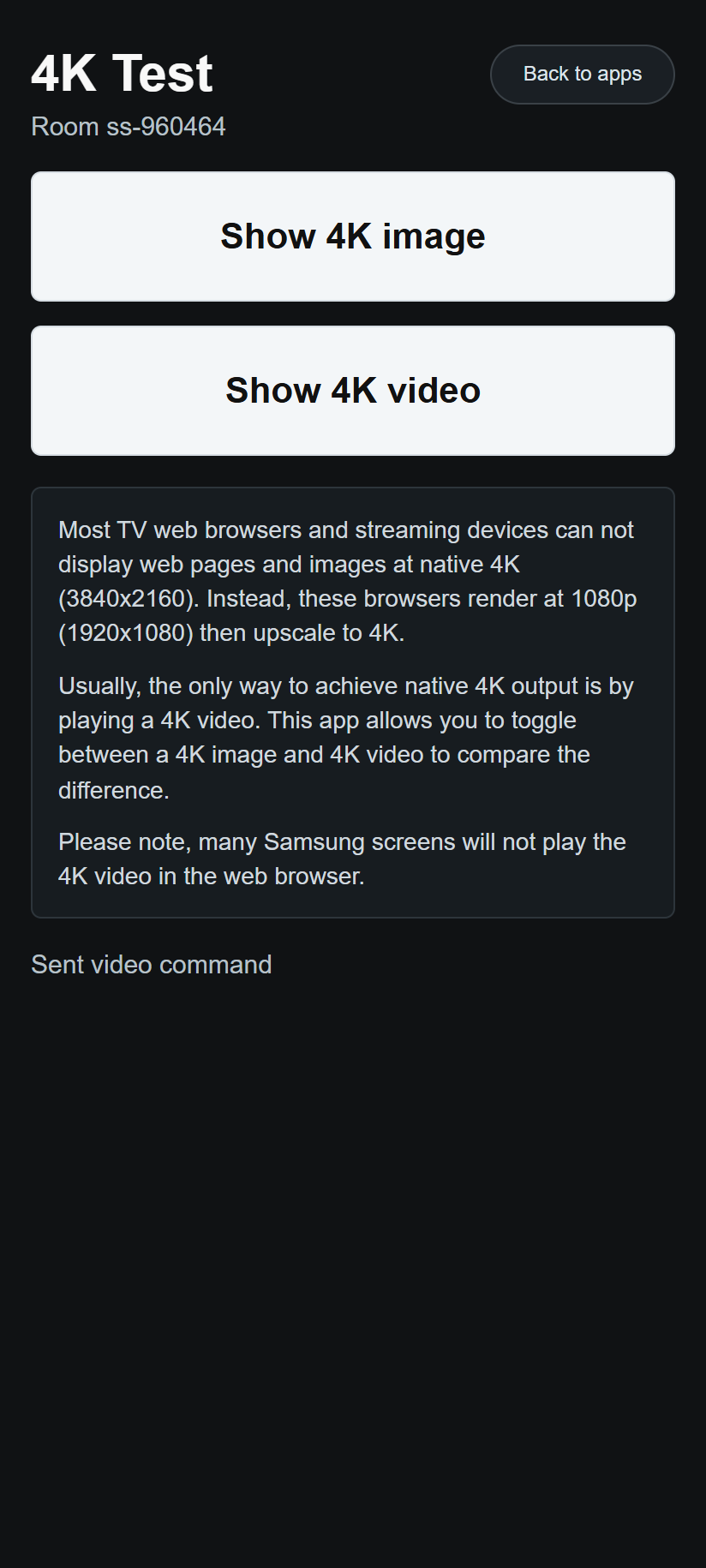
- Show 4K video selects the muted, looping video test.
- A room label helps you check which room you are controlling.
- Status messages show when an image or video command has been sent.
- Back to apps returns to the app list in the same room.
How to use it
- Open 4K Test on the TV or main display first.
- Scan its QR code with your phone to open these controls in the same room.
- Wait for the phone to connect, then tap Show 4K image.
- Look closely at the fine detail on the main display.
- Tap Show 4K video and compare. You can switch between the two as often as you like.
Both files are 3840 × 2160 pixels. The phone sends the commands; inspect the results on the main display. A Sent image command or Sent video command message confirms the command was sent, rather than confirming that the display has loaded or played the media.
To enter or leave fullscreen, use the Fullscreen or Exit fullscreen button on the main display.
What to look for
Some browsers draw pages at a lower resolution and enlarge them to fill a 4K screen. Video may be displayed differently, making the video test look sharper than the image test. Compare fine lines and small details; this is a visual comparison, not an automatic resolution measurement.
If the video does not play, tap Show 4K image to return to the still pattern. Video support depends on the main display's browser.
Screenshots