RCWeb Tanks Control App
The Tanks Control App (/tanks-c/) is the phone interface for RCWeb Tanks.
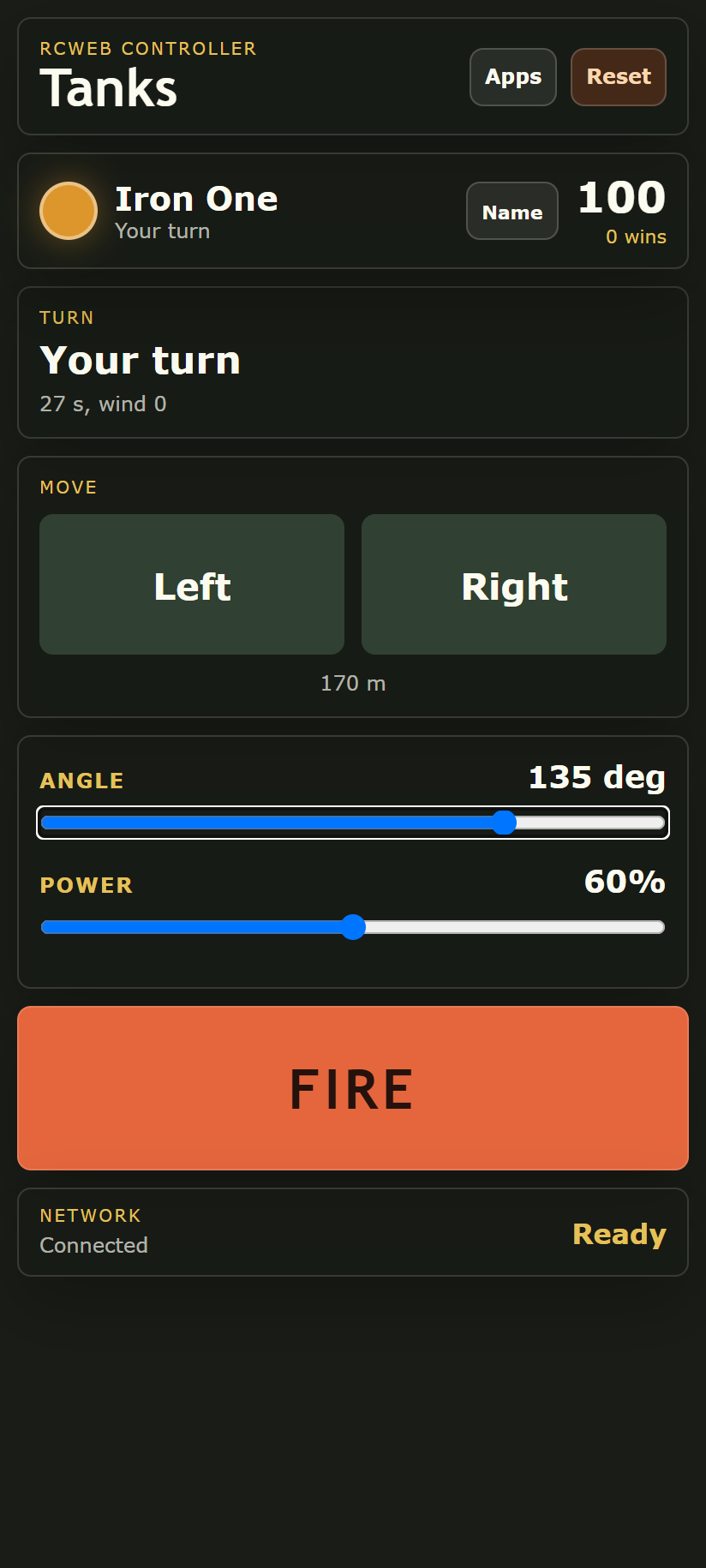
The layout is built for portrait smartphones with large touch targets and concise turn feedback.
Features
- Hold-to-move buttons and angle/power sliders.
- Turn, wind, health and win feedback.
- Name editing and a shared-game reset.
Getting Started
Open /tanks/ on the shared display first, then scan its QR code with your phone. The phone opens /tanks-c/ in the same room and joins as your tank.
The controller uses the shared RCWeb player name remembered on this device. If you have used another RCWeb app on the same device, Tanks will reuse that name. Use the Name button to change it.
Changing Your Name
Tap Name in the player panel. Enter the name you want shown on the display. Your phone remembers the name and updates it on the display.
Names are trimmed, spaces are normalized, and long names are shortened so they fit on the phone and scoreboard.
Turn Information
The controller shows whose turn it is, the current phase, remaining time, wind, your health, and your win count. When it is your turn, the movement buttons and fire button become active. When another player is aiming or the shell is in flight, your controls stay disabled.
The phone receives live status from the viewer, including hit damage, round-over messages, and winner messages.
Moving
Use Left and Right to drive your tank during your turn. Hold a button to move in that direction, then release to stop. Movement is limited each turn, and the remaining amount is shown below the buttons.
The viewer decides whether movement is valid. If the tank is on a slope that is too steep or the movement allowance is spent, the viewer ignores the move and sends a status update back.
Aiming
Use the Angle slider to rotate the cannon. The display updates the visible turret and the predicted shell path while you drag the slider.
Use the Power slider to change shot strength. Lower power makes shorter, softer arcs. Higher power launches the shell farther and faster. Wind still affects the final path, so the same angle and power can land differently each round.
Firing
Tap Fire when you are ready. Firing sends one shot to the viewer and ends your action for the turn. The display follows the projectile, shows the explosion, keeps the impact point focused briefly, resolves damage, then moves to the next active player.
If you tap Fire when it is not your turn or while your tank is destroyed, the controller shows a short "not ready" status instead of sending an invalid action.
Reset
The Reset button asks the viewer to start a fresh game. It regenerates the landscape, respawns joined players, and clears the active projectile and explosion state.
Use reset when players want to restart quickly or begin a new battle.
Connection Behavior
The viewer monitors active RCWeb clients. If this phone leaves the room or disconnects, your tank is marked disconnected on the display and skipped by the turn system. A disconnected tank cannot move, fire, be damaged, or block the round from ending.
A short interruption can reconnect your existing tank. Refreshing the page may join as a new tank.
Screenshot