Halloween Controls

Your pocket remote for nine bright Halloween scenes, nine realistic Spooky Glow apparitions or nine atmospheric Shadow scenes. Jump Scares adds eight fast jump scares plus Surprise Me. Scan the QR code on a Halloween display or launch Halloween from the RCWeb app list.
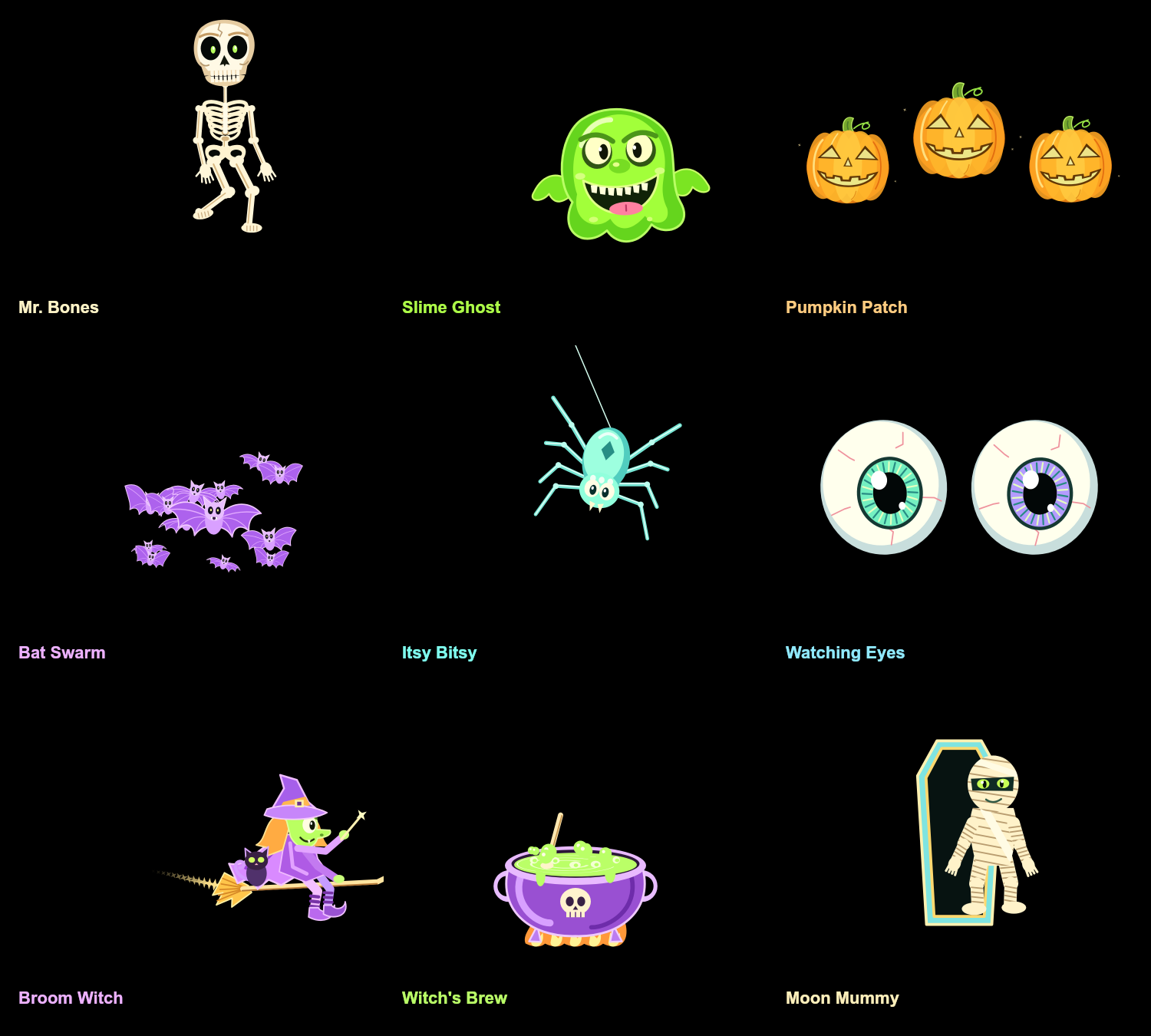
Play
- Tap a character picture to choose Mr. Bones, Slime Ghost, Pumpkin Patch, Bat Swarm, Itsy Bitsy, Watching Eyes, Broom Witch, Witch's Brew or Moon Mummy.
- Touch an arrow or slide a finger around the direction pad to move or look around. Keep your finger down to change direction; lift it to release steering.
- Slide diagonally for characters that move in all directions. Mr. Bones, Itsy Bitsy and Moon Mummy use a left/right pad. The moving center and highlighted arrows show your direction.
- Keep one finger on the pad and use another to tap an action button.
- Tap the big action buttons to explode bones, spray slime, scatter bats and more.
- For Mr. Bones, try Wave! and Arms up! while he walks. Explode! sends his bones flying, and Rebuild puts him back together.
- For Pumpkin Patch, tap Bounce! to make the three glowing pumpkins hop in sequence, or Glow! for a bright, warm light pulse that smoothly fades away. They keep swaying and remain visible throughout. There is no movement pad for this scene.
- For Broom Witch, steer the broom, do a Loop!, or cast Magic bats! from the wand.
- For Witch's Brew, slide to stir. Try New potion, Add eyeballs! and Erupt! together.
- For Moon Mummy, tap Sleep to return to the coffin and close its lid. Wake up! opens it and brings the mummy back out. Slide left or right to walk while awake.
- Characters keep moving automatically while you choose what to do next.
Scene changes blend with a short dissolve on the display, while its QR panel stays steady. Flight and direction changes ease smoothly.
Multiple phones can join. One person steers at a time; the message below the controls tells you when someone else is steering. Your action buttons still work.
Demo or manual
The playback panel above the scene pictures shows the current mode and a live countdown. In Manual mode, Demo in 1:00 counts down from your last controller activity. After a minute without activity, the display cycles through the selected style's scenes (nine in Simple/Cartoon, nine in Shadow, nine in Spooky Glow, nine in Jump Scares), spending 20 seconds on each. In Demo mode, the timer shows when the next scene will appear.
Tap Start demo to begin with the next scene now, or Switch to manual to keep the current scene and restart the inactivity timer. Picking a scene, steering, tapping an action or changing a projection setting also takes control immediately. Touching, typing and scrolling during manual play reset the inactivity timer; an idle connection does not. Mode and countdown are shared across all connected phones, including newly joined phones.
Demo uses your existing projection settings. Simple/Cartoon includes Pumpkin Patch; Shadow cycles only its own nine scenes. It keeps cycling without phones connected. Back to apps stays on the app list during automatic scene changes.
Each demo scene performs its actions too: bones explode and rebuild, the witch loops and casts a spell, and the mummy sleeps and wakes. Shadow figures slowly appear and retreat. Spooky Glow spirits also dart across, peek and rush closer between quiet intervals. Pumpkin Patch glows and bounces throughout its turn. Taking control cancels the remaining automatic actions immediately.
Advanced settings
Animation style offers Simple, Cartoon, Shadow, Spooky Glow and Jump Scares. Cartoon brings detailed rendered 3D artwork to the original nine scenes. Artwork loads on the display the first time you choose Cartoon; Simple keeps playing until it is ready. The choice is saved on the display and shared across connected phones.
Shadow replaces the scene list with nine realistic, unsettling silhouettes on white. These are slow, silent scenes with an adult atmosphere, without cartoon faces. Demo follows this nine-scene selection. Switching back to Simple or Cartoon restores the original scene list.
- Night Flight: Steer the bats, Scatter or Gather.
- Passing Presence: Steer the veiled shadow, Materialise or Disappear.
- The Rising: Position the figure left/right, Rise or Withdraw from the bottom edge.
- Ceiling Watcher: Position the inverted figure left/right, Descend or Retract through the top edge.
- At the Glass: Position the hands, Press closer or Release.
- Distant Visitor: Position the figure left/right, Approach or Recede.
Shadow actions take several seconds to unfold, then automatic motion resumes after a short hold. All projection settings still work; hide the QR panel for an uninterrupted white background. The first selection loads the silhouettes, then switches reuse the cached artwork.
QR code panel offers Extra small (50%), Small (75%), Standard (100%), Large (150%), Extra large (200%) and Hide. Larger panels fit the display. Hiding removes the joining panel without disconnecting your phone; choose any size to show it again. Choose Hide for a completely black display between jump scares.
Mirror projection reverses the whole display, including the invitation QR code, for rear projection. Your phone stays the right way round. Lean graphics reduces effects and rendering resolution for older displays. These settings are saved on the display when browser storage is available.
Connection and navigation
Controls become available when a Halloween display is connected in the same room. On disconnection, held controls are released. Reconnection restores the current character and projection settings.
Use Back to apps to return this phone to the app list without changing the display. See the Halloween guide for all scenes.
Spooky Glow
For a faster, scarier variation with black pauses and sudden attacks, choose Jump Scares in Advanced settings. See the scenes below.
Choose Advanced settings → Animation style → Spooky Glow for nine realistic, luminous apparitions on pure black. Original generated artwork brings detailed fabric, bone and spectral skin to a more unsettling projection style.
-
Veiled Wraith: Steer a drifting shrouded apparition. Manifest brings it into the light; Disperse fades it away.
-
Grave Portrait: Move a ghostly skull through the darkness. Loom closer enlarges it; Recede sends it into the distance.
-
Lantern Keeper: Guide a veiled figure carrying a cold lantern. Light the beacon strengthens the light and rising sparks; Vanish fades the figure away.
-
Beyond the Glass: Position two independently moving spectral hands. Reach closer brings them forward; Knock makes them press toward the viewer in succession.
-
Peripheral Phantom: A pale figure darts across your peripheral vision, leaving a faint afterimage. Dart across sends it past; Flash nearby briefly reveals it close to the edge. Slide to guide its height and crossing direction.
-
The Watcher: A hooded face peeks out from the darkness. Peek out reveals it slowly; Rush closer suddenly brings the face forward. Slide to choose where it appears.
-
Banshee Rush: A reaching apparition emerges from the distance. Approach draws it closer; Lunge! makes it rush toward the viewer and dissolve.
-
Restless Procession: Three restless spirits weave past one another at different distances. Summon brings them together; Scatter sends them outward into the darkness. Slide to guide the group.
All nine scenes move by themselves and are silent. The new encounters alternate quiet, barely visible movement with brief appearances, gentle shimmer, cold glows and sudden approaches. Repeated taps cannot stack or rapidly repeat a reveal. Demo performs actions and cycles through all nine scenes. The style is saved on the display, while refreshing starts at Veiled Wraith. Artwork loads once and is cached for quick scene changes. Phones load only small preview pictures.
The standard QR panel, size/Hide setting, lean graphics and whole-display mirroring still work. Hide the QR after joining for uninterrupted black. If artwork cannot load, the display returns to Simple and you can select Spooky Glow again to retry.
Jump Scares
Choose Advanced settings → Animation style → Jump Scares for realistic, high-contrast jump scares on black. Each scene opens after a two-second pause. Use Time between scares below the action button to choose 3, 5, 10, 15, 30 or 60 seconds between appearances (default five). This setting applies to all Jump Scares scenes, including Surprise Me, and is saved on the display and shared across phones. Changing it starts a fresh countdown without cutting off an active scare. Scare now! still triggers a manual appearance. Demo changes scenes every 20 seconds, with an opening scare even when the selected interval is longer. Each lasts around one second, then the scene returns completely to black.
- Surprise Me: Alternates all eight scare types, attacking from different directions.
- Ghost Flyby: A bright apparition races across the window with a fading afterimage.
- Grave Jumper: A clawed creature leaps up from below, jolts toward you and drops away.
- Ceiling Spider: A huge pale spider drops from above, bounces on its thread and retreats.
- Banshee Attack: A distant ghost rushes straight toward the viewer.
- Face in the Dark: A hooded face suddenly appears close up and disappears again.
Tap Scare now! to trigger the selected scene. Jump Scares has no movement controls. A tap during a short cooldown queues one appearance; repeated taps during an active scare do not stack. All scenes are silent. Demo cycles through these nine cards and keeps their periodic scares running.
The style is saved on the display; refreshing starts with Surprise Me. It shares its ghost artwork with Spooky Glow for fast switching. The standard QR panel, Hide/size options, lean graphics and whole-display mirroring remain available. Hide the QR after joining if you want the whole projection to disappear into black between scares.
More window encounters
Shadow, Spooky Glow and Jump Scares each have nine scene pictures in a 3 × 3 layout on the controller.
- Shadow — Raven Omen: a circling bird silhouette with slow wingbeats; use Circle closer or Withdraw.
- Shadow — Lost Bride: a veiled figure drifting behind the glass; Materialise or Disappear.
- Shadow — Floor Crawler: a low silhouette creeping along the sill; Creep closer or Retreat.
- Spooky Glow — Spectral Bride: a luminous, swaying veil with a subtle shimmer; steer her and use Manifest or Disperse.
- Jump Scares — Raven Strike: wings and talons rush forward from above.
- Jump Scares — Veil Ambush: a distant bride abruptly lunges closer.
- Jump Scares — Crawler Attack: a creature scrambles in from the side, then retreats into black.
The three new Jump Scares scenes have Scare now! and repeat automatically at your chosen interval. Surprise Me includes all eight scare types and uses the same delay.