RCWeb Kiosk Menu
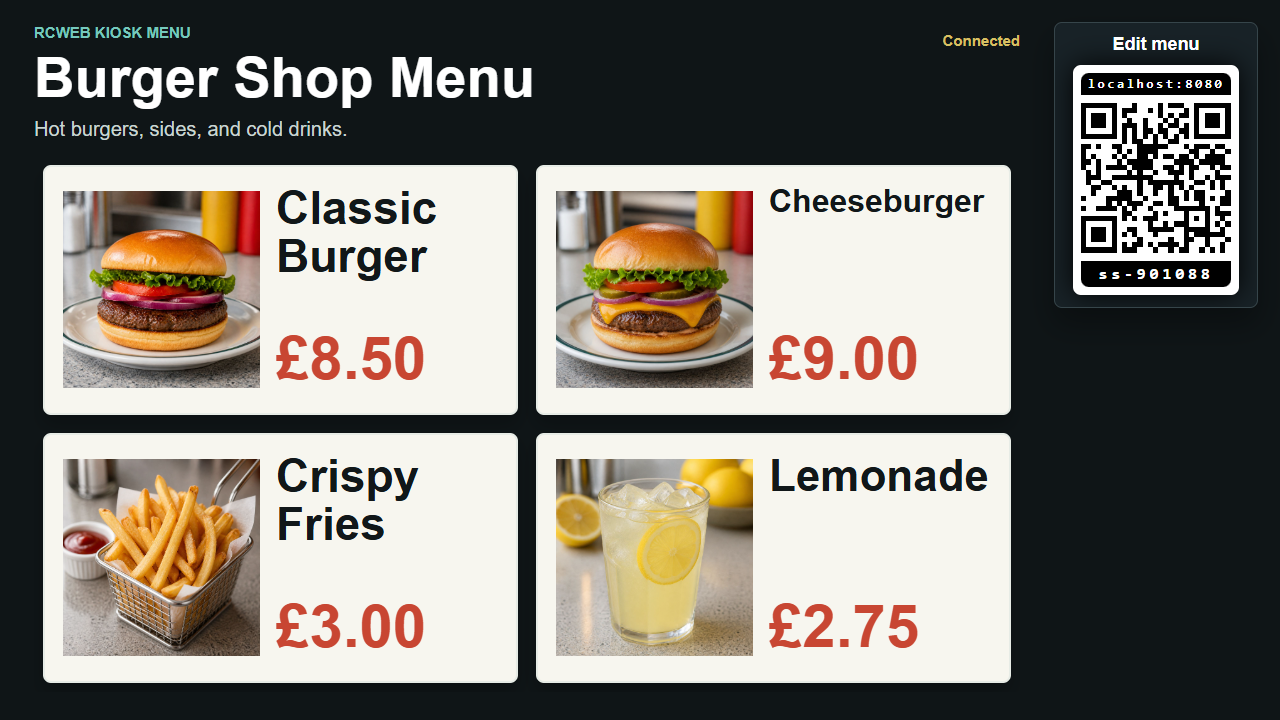
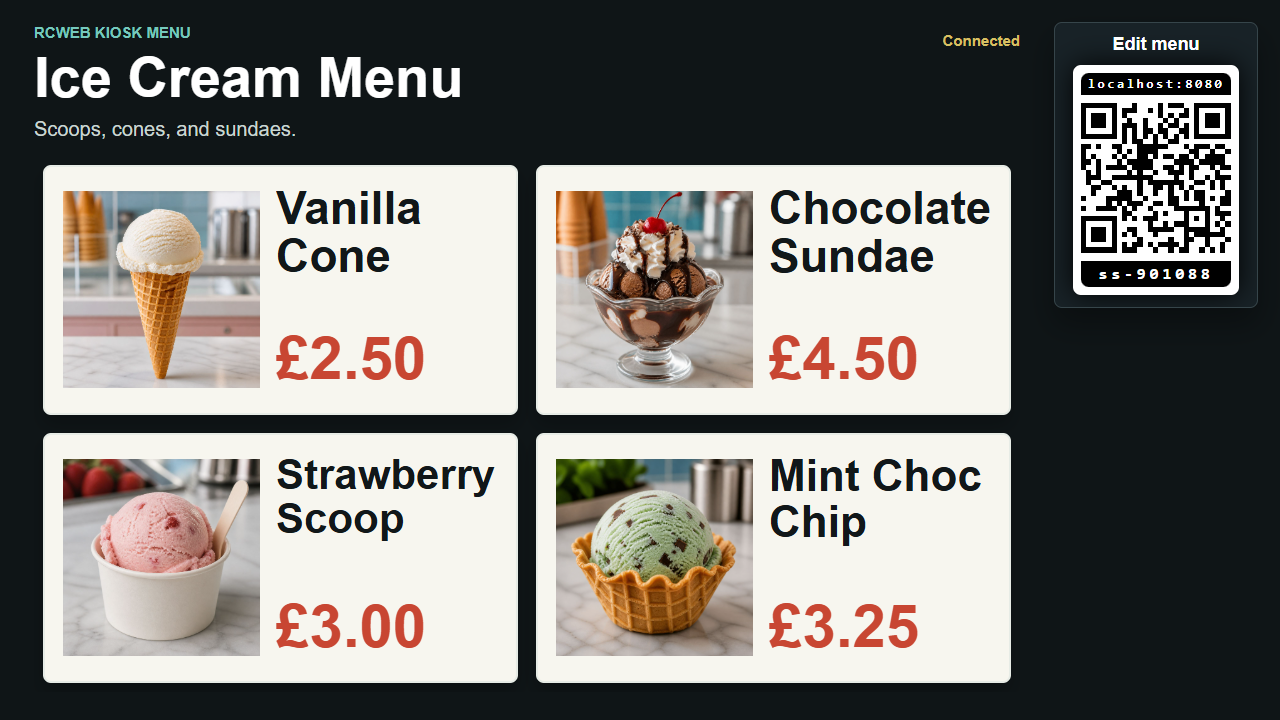
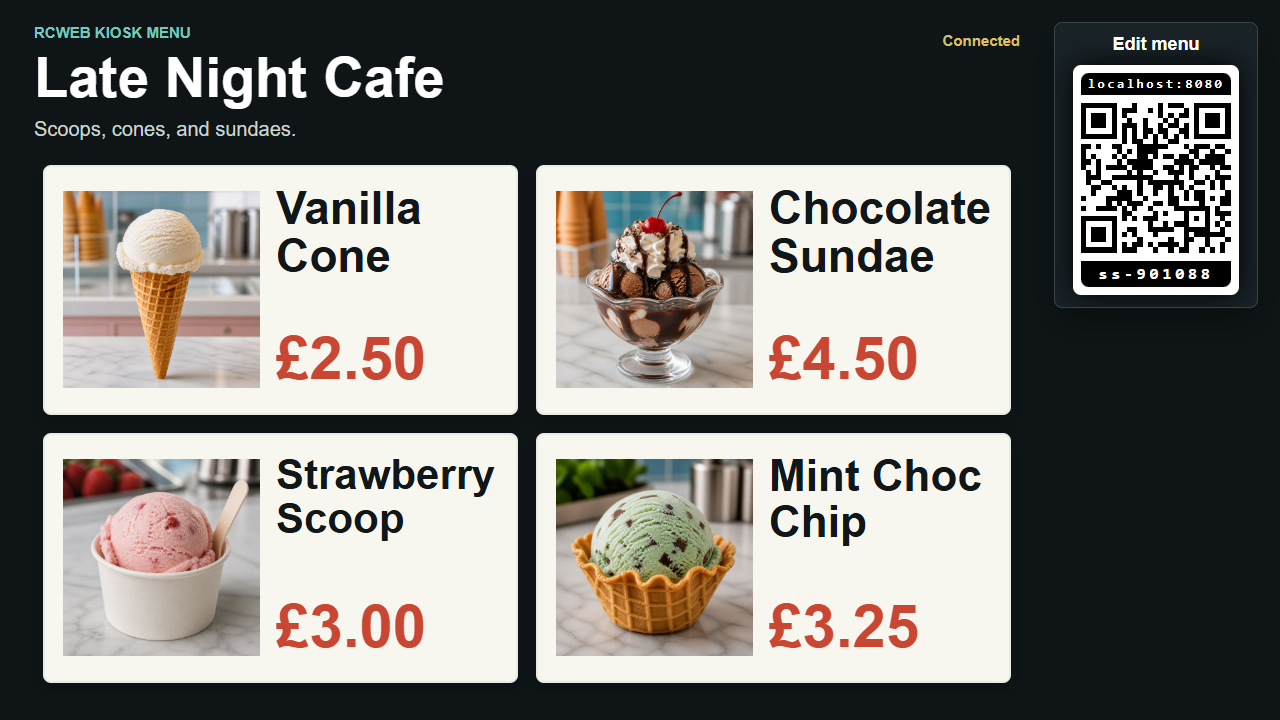
RCWeb Kiosk Menu turns a shared screen into a live menu or sign board for cafes, events, parties, market stalls, pop-ups, and temporary counters.
Features
- A live board with up to four photos, titles and prices.
- Phone editing for cafes, stalls, parties and events.
- Hide the QR invitation after setup.
Start The Menu Board
- Open
/kiosk-menu/on the display, TV, projector, tablet, or laptop you want customers or guests to see. - Leave the QR code panel visible while setting up.
- Scan the QR code with a phone to open the menu control app.
- Edit the board from the phone. Changes appear live on the display.
The QR code opens /kiosk-menu-c/ in the same room.
What The Board Shows
The board can show up to 4 menu items.
Each item can include:
- A photo.
- A title.
- A price.
The board keeps four consistent spaces so the layout stays tidy even when fewer than four items are currently shown.
Common Uses
Use it for:
- Cafe specials.
- Event food and drink menus.
- Party bars or snack tables.
- Stall price lists.
- Temporary signs for products, raffle prizes, activities, or services.
QR Code Panel
The display shows the QR code panel when it first opens or reloads, so someone can always get back to the control app.
From the control app, you can hide the QR code after setup if you want a cleaner public display. Reloading the display shows the QR code again.
Tips
- Use short item names for the clearest display.
- Use square or near-square photos where possible.
- Prices can include any text, so you can use values such as
3.50,from 5,free, orsold out. - Keep the display app open while editing from the phone.
Screenshots