RCWeb JScreenFix Control
JScreenFix Control lets you position the JScreenFix pixel fixer on a TV or monitor from your phone. Touch the Big screen preview to move the animated window to the corresponding part of your display.
Features
- A clean black layout with a screen frame, stand and labelled Move me marker.
- Smooth remote positioning with a preview matched to the display's shape.
- Eight labelled background colours to help inspect pixels.
- Connection status and position recovery after reconnection.
- Step-by-step JScreenFix help below the controls.
Screenshot
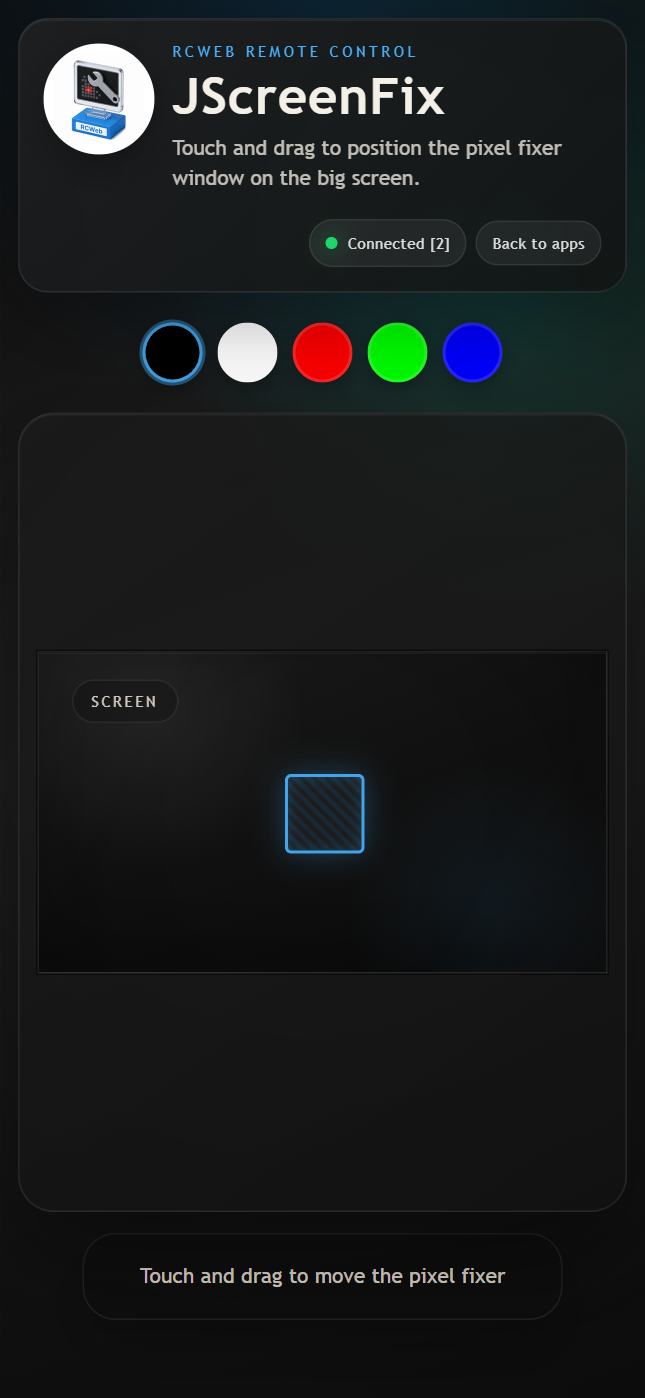
The Interface
The Big screen preview represents your TV or monitor. Its highlighted Move me marker shows the fixer position and stays large enough to read. Touch or drag inside the screen to move it; the display moves smoothly between positions. The preview keeps its position when you rotate your phone.
The colour controls sit below the preview. Choose black, white, red, green, blue, cyan, magenta or yellow to change the display background. The selected colour is outlined in blue.
How To Use
- This app is designed to be opened via the QR code shown on the main
/jscreenfix/display. - Once connected, your phone's screen represents the target display.
- Touch and drag anywhere on the central tracking area to move the pixel fixer window on the television or monitor.
- Use the colour buttons below the preview to inspect the affected pixel against different backgrounds.
- Scroll below the controls for positioning guidance and information about JScreenFix.
About JScreenFix
JScreenFix shows a rapidly changing colour pattern over the affected part of the display. It may help bright stuck pixels; repair is not guaranteed, and a permanently black, dead pixel is less likely to respond to software.
Use the background colours to find the affected pixel, then drag the preview so the animated area covers it. Official JScreenFix guidance suggests leaving the pattern in place for at least 10 minutes. Move the window aside to check the result afterwards.
You can release your finger after positioning the window. Keep the display app open while the pattern runs. Back to apps changes only the phone's page and leaves the display running.
The page includes help below the controls. Scroll down to read it. If the connection drops, wait for reconnection before dragging; the preview recovers the display's position and selected background.
On the big screen
The display uses individual device pixels, shows a live FPS counter in the fixer header and warns if the pattern falls below 45 FPS. The repair pattern is 256×256 pixels on larger displays and grows on high-DPI phones for easier positioning. Narrow screens also use a smaller QR panel. After one minute the QR panel dims to 33% opacity.
See the JScreenFix display guide for screenshots and display features.