Files Pro
Share files in a room with media previews, names and live transfer charts. Keep the sharing page open so other people can download the files you choose.
Features
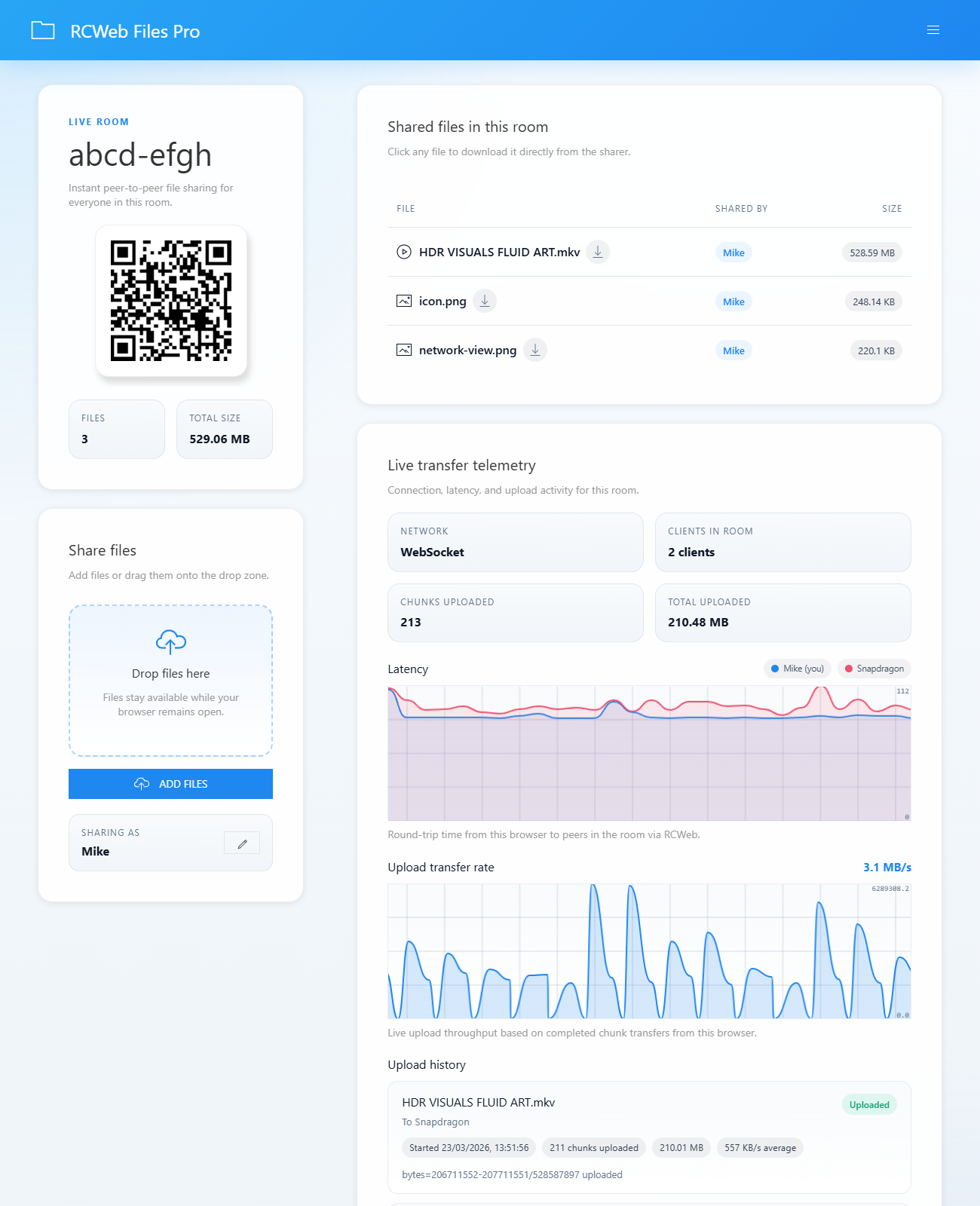
- Add several files with Add files or the drop zone.
- See the room's file count, total size and each person's shared files.
- Preview supported images, audio and video.
- View connection, latency and upload activity charts.
- Change your display name and copy a room invitation from the menu.
How to use
- Open Files Pro. Others can scan the QR code in the Live room panel to join your room, or you can send them its invitation using Menu → Copy link. The code and copied link both include your room ID.
- Choose Add files, or drag files onto Drop files here.
- Select a shared file to download it, or use its preview control where available.
- Keep the source tab open and connected until the transfer finishes.
Choose Change name in the menu to make your files easier to identify. The transfer charts show activity during this session; they are useful for seeing whether an upload is still progressing.
Anyone in the room can access its shared files. Refreshing or closing your sharing page clears the selected files from that session; add them again when you return.
Screenshots