RCWeb Chat Pro
Chat Pro is an all-in-one room chat for RCWeb. Use it to talk with everyone, open private conversations, share media and files, and make one-to-one audio or video calls from a phone, tablet, or desktop browser.
Features
- Room-wide and private conversations with typing indicators and unread counts.
- Image, video and file sharing, with previews and downloads.
- One-to-one audio and video calls.
- Saved names and profile pictures, plus room links and QR invitations.
Quick start
- Open Chat Pro. To meet other people, everyone must open a Chat Pro invite for the same virtual room.
- The first time you use the app, enter a display name and select one of the 100 profile pictures. Chat Pro remembers both on that browser.
- Use Copy room invite to send the room link, or choose Show QR code so someone can scan the invitation with another device.
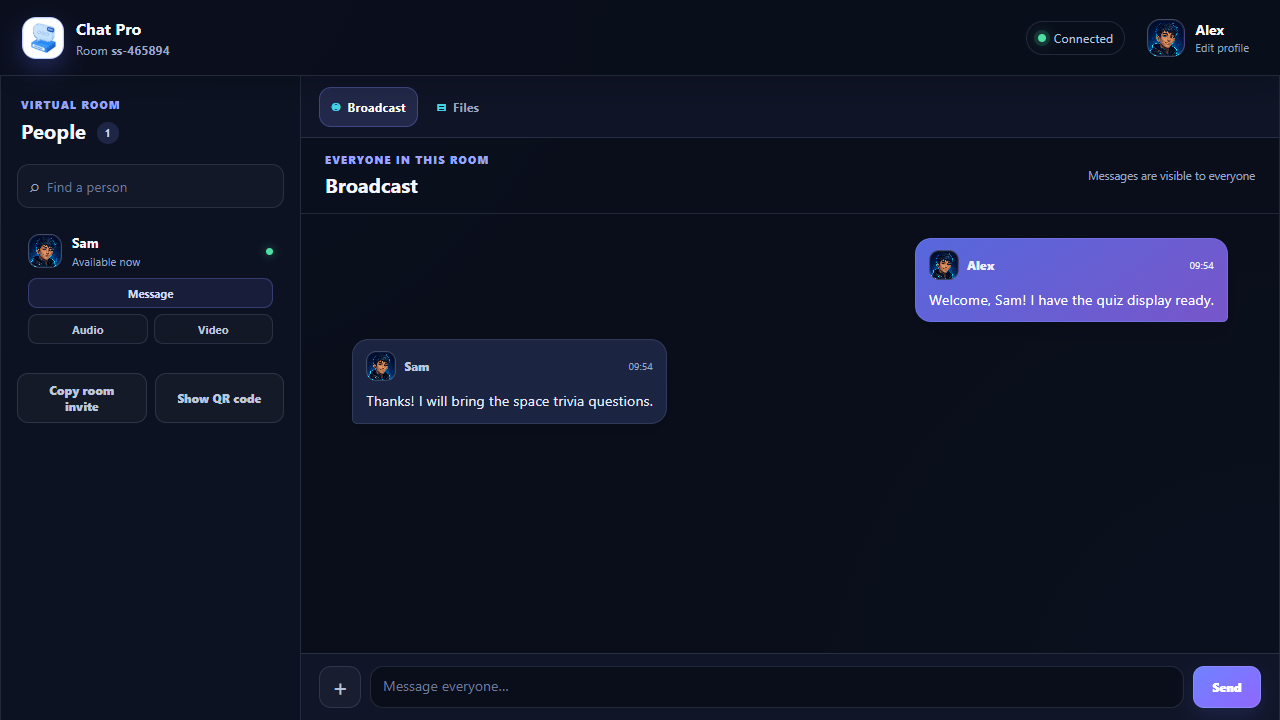
- Use the permanent Broadcast tab to send a message to everyone currently in the room.
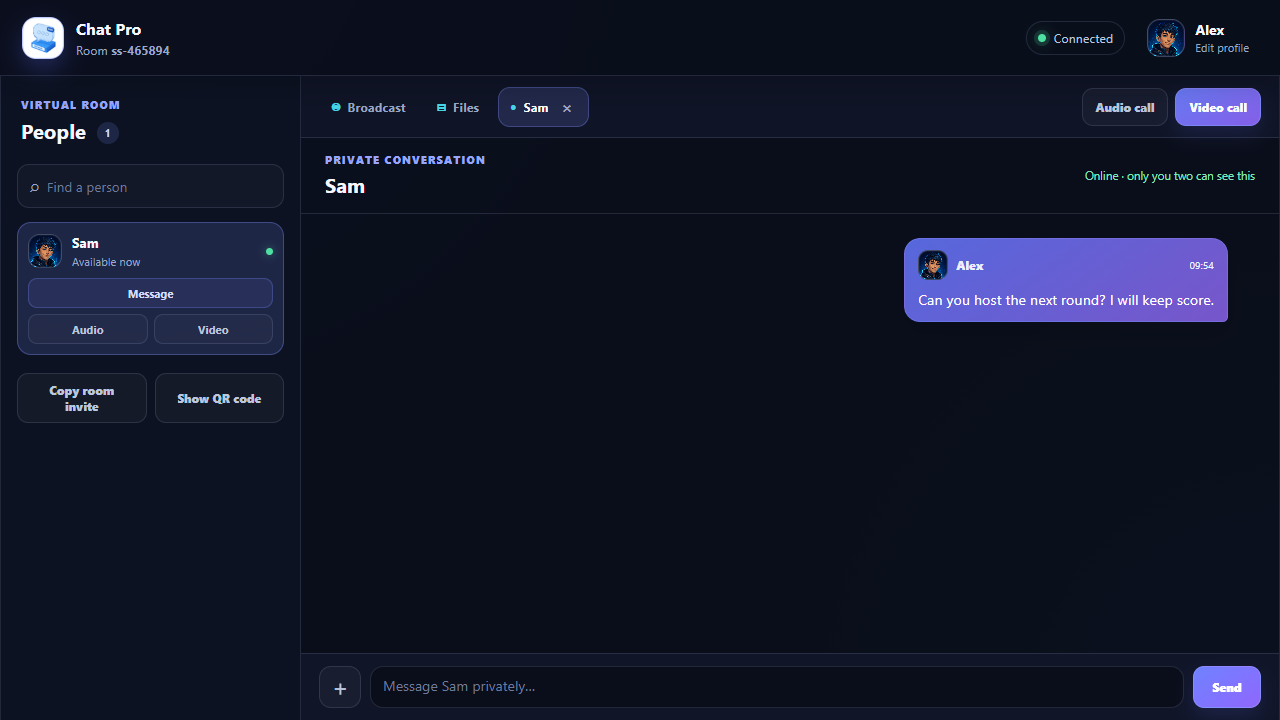
- Select Message beside a person to open a private tab that only targets you and that person.
Your name and profile picture
If you have not already saved an RCWeb player name in this browser, Chat Pro asks for a display name before joining the room. Choose any of the 100 futuristic people, animals, robots, aliens, and creatures as your profile picture, then select Save profile.
Your name and picture appear in the people list, conversation tabs, messages, notifications, and calls. To change them later, select your profile at the top-right of the app. Changes are announced to the room automatically and are also applied to your existing messages on each connected browser.
The profile is saved only in the browser you are using. A different browser or device may ask you to choose a profile again.
Finding people in the room
The people list on the left shows the other Chat Pro users who are online. Your own profile is deliberately omitted. The list updates automatically as people connect, disconnect, reconnect, or edit their profiles, so separate join and leave messages are not needed.
Use Find a person to filter a busy room by display name. Every person has three quick actions:
- Message opens a private conversation.
- Audio starts a private audio call.
- Video starts a private video call.
On a phone, select the menu button at the top-left to slide the people list into view. Select the menu button again, the close button, the shaded area outside the list, or a person to hide it.
Broadcast chat
The Broadcast tab is always available. Anything sent here is visible to every Chat Pro user in the same room.
Type a message and select Send, or press Enter. Use Shift+Enter to add a new line. Web addresses in messages become clickable links. Chat Pro also shows who is typing and displays unread counts on tabs when messages arrive elsewhere.
Recent Broadcast history is shared by active peers with newly connected users. It remains available while at least one participating browser still holds it, up to the app's recent-history limit. Chat Pro does not store the room history in a server-side message database.
Private conversations
Select Message beside someone to add a private tab with their name. Messages and media sent from this tab go to the person you selected.
Each private conversation has its own history, typing indicator, unread count, and close button. Closing a tab only removes it from your tab bar; a new private message from that person opens it again. If the person goes offline, the tab can remain visible so you can review the conversation, but sending is disabled until they return.
Private histories are never included in the Broadcast history given to newcomers. They exist only in the browsers participating in that conversation and are not restored from a server after those browser tabs close.
Sharing images and videos in chat
In Broadcast or a private conversation, select the + button beside the message box and choose an image or video.
- Images are prepared in your browser and may be resized to make sharing faster. Animated GIF and SVG files are preserved.
- Videos receive a thumbnail generated in your browser. The original video remains with the sender and streams when someone selects the thumbnail.
- Select an image or video thumbnail in a message to open the large media viewer. Video playback controls are provided by the browser.
- Media shared in Broadcast is also added automatically to the Files tab. Private media is not added to the room's public file library.
The sender's profile picture and name appear at the top-left of every message bubble, followed by the text or shared media and its time.
The Files tab
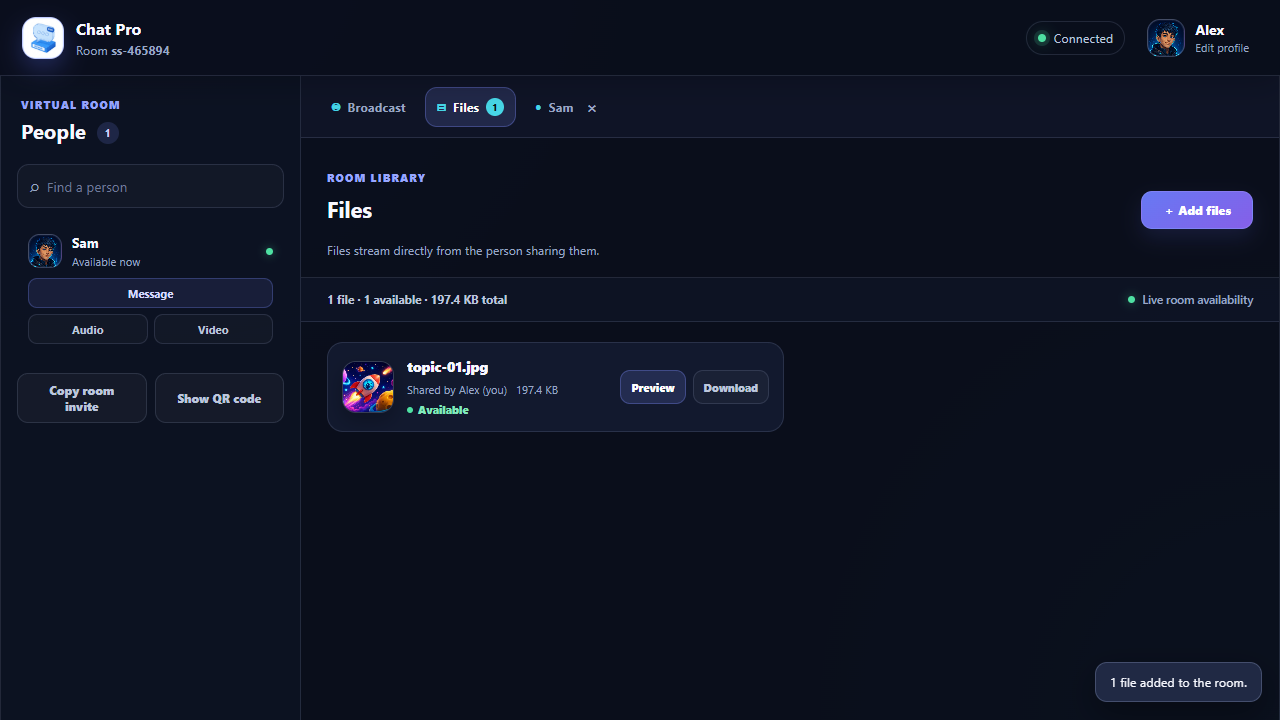
The permanent Files tab is the room library. It collects every image and video shared in Broadcast and can also share documents, audio, archives, code, ebooks, databases, fonts, applications, 3D models, calendars, and other file types.
To share files without posting a chat message:
- Open Files.
- Select Add files.
- Choose one or more files from your device.
Each entry shows the filename, size, person who shared it, and whether it is currently available. Common extensions use matching file-type artwork. Images show a thumbnail generated by the sharing browser, while Broadcast videos use their generated frame thumbnail.
Use Preview for available images and videos. Use Download for any available file. Files are available while the person sharing them keeps their tab open; they are not saved as a permanent online collection.
When a file owner closes Chat Pro or disconnects, their files remain listed but become Unavailable. They become available again if the original sharing tab reconnects with its files still available. Keeping the sharing tab open keeps its files accessible.
Private audio and video calls
Start a call with the Audio or Video action beside a person. You can also open that person's private tab and use the call buttons above the conversation.
The other person can Accept or Decline the incoming call. During a connected call you can:
- mute or restore your microphone;
- turn your camera off or on during a video call;
- see the elapsed call time;
- end the call at any time.
Calls are one-to-one; each person can accept, decline or end a call.
Camera and microphone access normally requires HTTPS or localhost. Grant the browser permission when prompted. Calls may fail on restrictive corporate, school, mobile or guest networks.
Inviting another device
The invite controls are at the bottom-left of the people panel:
- Copy room invite copies the complete Chat Pro address, including the room identifier. Paste this into a message, email, or another browser.
- Show QR code displays the same address as a scannable code, which is convenient when moving between a desktop and phone.
Do not remove or change the r room parameter when sharing the link. People using different room identifiers cannot see or contact each other.
Phones, tablets, and desktops
Chat Pro adapts to modern mobile and desktop browsers. On larger screens, the people list stays visible beside the active conversation. On smaller screens, it becomes a slide-out panel, conversation tabs scroll horizontally, and calls use the available screen space.
For the best mobile calling experience, keep the browser in the foreground, allow camera and microphone access, and avoid locking the device during a call or transfer.
Privacy and availability
- Messages, shared files and recent history remain available through the participating browser tabs rather than a permanent inbox.
- Private conversations and calls are directed to the selected person.
- Shared files are fetched only when another participant previews, streams, or downloads them.
- Closing the last browser that holds a conversation removes that conversation history.
- Closing the browser that hosts a file makes the file inaccessible to others.
- Anyone with the complete room invite can join that virtual room, so share invite links with the intended participants.
Troubleshooting
- Nobody appears in People: confirm that everyone opened Chat Pro with exactly the same room invite.
- A file says Unavailable: ask the person who shared it to reconnect and keep their Chat Pro tab open.
- A call will not connect: confirm browser permissions, try HTTPS or
localhost, and try another network if calls are restricted. - A private message cannot be sent: the recipient is offline or the room connection is recovering.
- Your old profile is shown: select your profile at the top-right, update the name or picture, and save it again.
Screenshots