RCWeb YouTube Display
The RCWeb YouTube Display (app/youtube) is the big-screen half of the RCWeb YouTube player. It is designed for a TV, projector, monitor, kiosk browser, or any shared display in an RCWeb room.
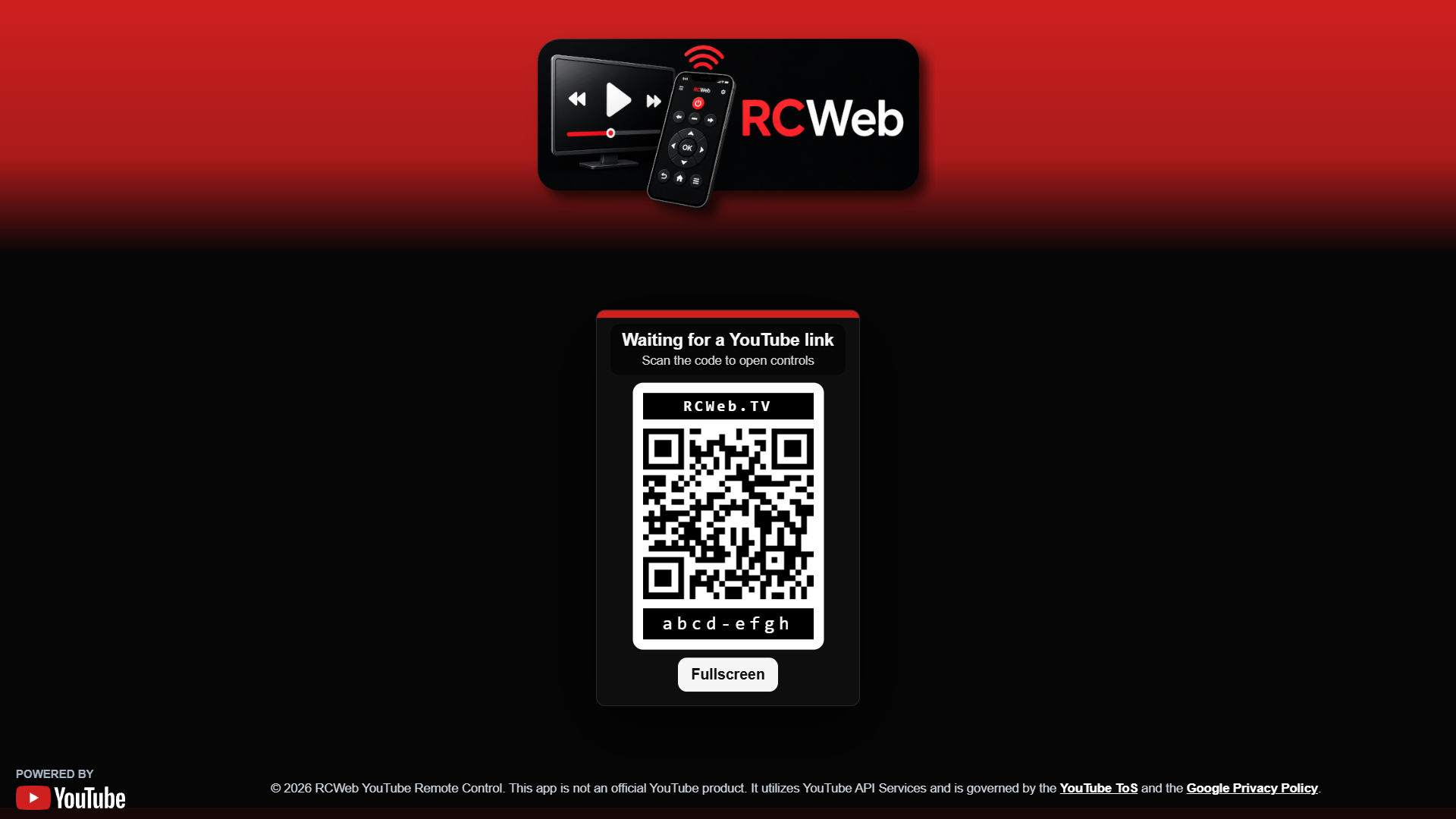
Screenshot
Overview
This app turns the browser into a room controlled YouTube screen. The display shows an embedded YouTube player full screen, presents a QR code for phones to join as controllers, and receives playback commands from one or more youtube-c apps in the same virtual room.
The viewer is intentionally simple on the main screen: video first, with optional title, QR code, and diagnostics overlays controlled remotely.
How to use
- Open
/youtube/on the display browser. - Scan the QR code with a phone, or manually open
/youtube-c/?r=<room>on another browser. - Paste YouTube links into the control app to build the queue.
- Use the phone controls to play, pause, seek, skip, reorder, loop, mute, or change volume.
- Tap the viewer screen to toggle fullscreen.
If the browser blocks automatic YouTube playback, the display shows an Enable playback button. Pressing it gives the page the local user gesture browsers require before video playback can start.
Features
- Plays YouTube videos through the YouTube iframe player.
- Shows a QR code that opens the matching
youtube-capp in the same room. - Can hide or show the title overlay, QR code, and stats overlay.
- Supports play, pause, seeking, previous, next, rewind, and fast-forward commands.
- Supports queue playback, item selection, item removal, queue clearing, and drag-reordered playlists.
- Supports loop off, loop playlist, and loop current item.
- Supports mute and volume control from the control app.
- Shows Stats for nerds diagnostics when enabled, including room, connection status, client count, player state, queue state, current video ID, loading, quality, audio, and loop mode.
Multiple viewers
Several youtube display browsers can run in the same RCWeb room. The control app targets all youtube viewers while excluding youtube-c clients, so every viewer receives the same commands.
When a new viewer opens, it asks existing viewers and active controllers for the current queue and playback state. This lets a refreshed or newly opened display rejoin the room without forcing users to rebuild the playlist.
The viewers also coordinate playback state so displays in the same room stay aligned without competing for control.
Related app
Use this app with RCWeb YouTube Controls (app/youtube-c).
Returning to a playlist
Use the phone controls to download a playlist file and import it later. A returning display can recover the queue from the room's connected devices. It begins on its control-ready screen; tap Enable playback if needed. Video availability and playback require internet access.