01
Open your screen.
Open RCWeb in the display’s browser. Leave the page connected and note the room code shown on screen.
Open a viewer RCWeb.AI ASSISTANT
AI ASSISTANT FOR DIGITAL SIGNAGE
Create and update digital signage from your phone with the RCWeb AI Assistant. Describe a digital menu board, welcome screen or retail promotion in everyday language, then make it yours through chat.
Start with Demo. No API key to enter.
Limited free tokens · Requires a connected RCWeb screen
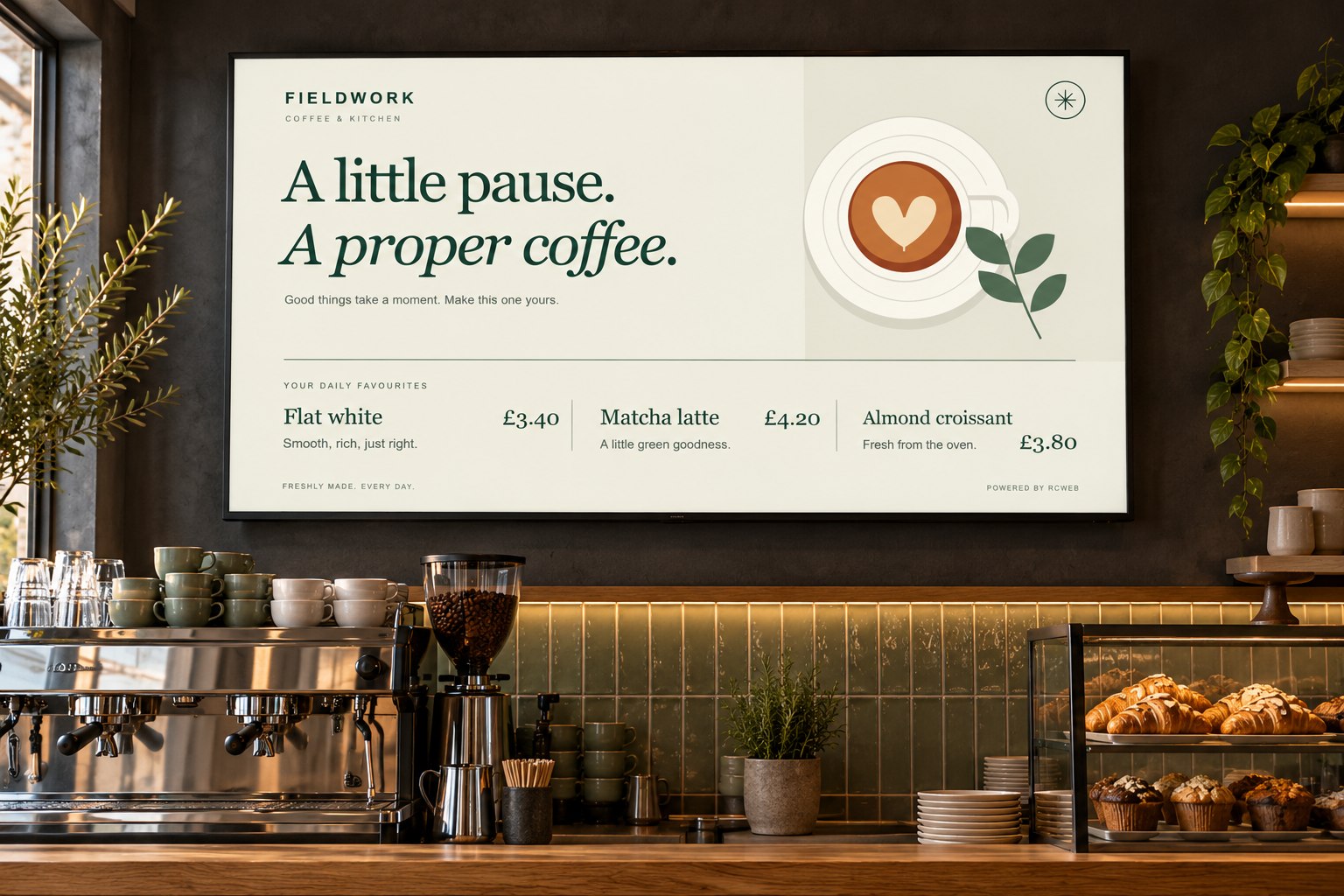
Create a beautiful menu
for my café.
Let’s give your coffee
a bigger stage.

Illustrative café setting and conversation
01 / THE POSSIBILITIES
From café menus to reception displays, create screen content that fits your business. Explore these digital signage examples, then describe your own to the assistant.
Take a closer look
Give your specials a screen of their own. Create a menu, change a price or put today’s favourite front and centre.
“Create a café menu with flat white £3.40, matcha latte £4.20 and almond croissant £3.80. Use cream and forest green.”
THEN MAKE IT YOURSAdd an iced coffee for £3.80.
Illustrative signage examples. AI output varies with your prompt, model and screen. This preview does not control a live display.
Display café and restaurant menus, highlight daily specials and update prices through chat.
Put offers and promotions on your shop’s screen, then change the message as your offer changes.
Greet guests in lobbies and waiting areas with welcome messages, opening hours and wayfinding.
Show programmes, room directions and announcements. Ask for a countdown to the next session.
Opening hours · Wayfinding · Guest Wi-Fi · Countdowns · Announcements · QR posters
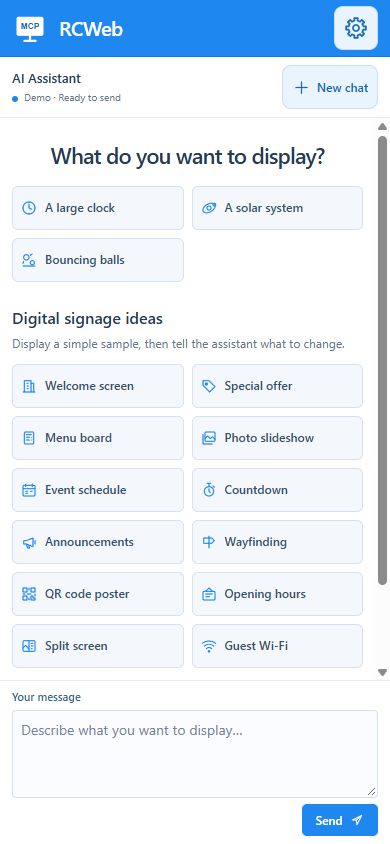
02 / REMOTE SCREEN CONTROL FROM YOUR PHONE
Update your digital signage from a smartphone, tablet or computer. Open the assistant in your browser, connect to the screen’s room code and describe what needs to change — behind the counter or across the lobby.
“Use our colours.” “Make the headline bigger.” Keep the conversation going to refine what’s already on screen.
Ask for a screenshot and the assistant can bring a capture of the selected screen into your chat.
Connect with its room code, choose your target when needed, and create for that display’s size and browser.
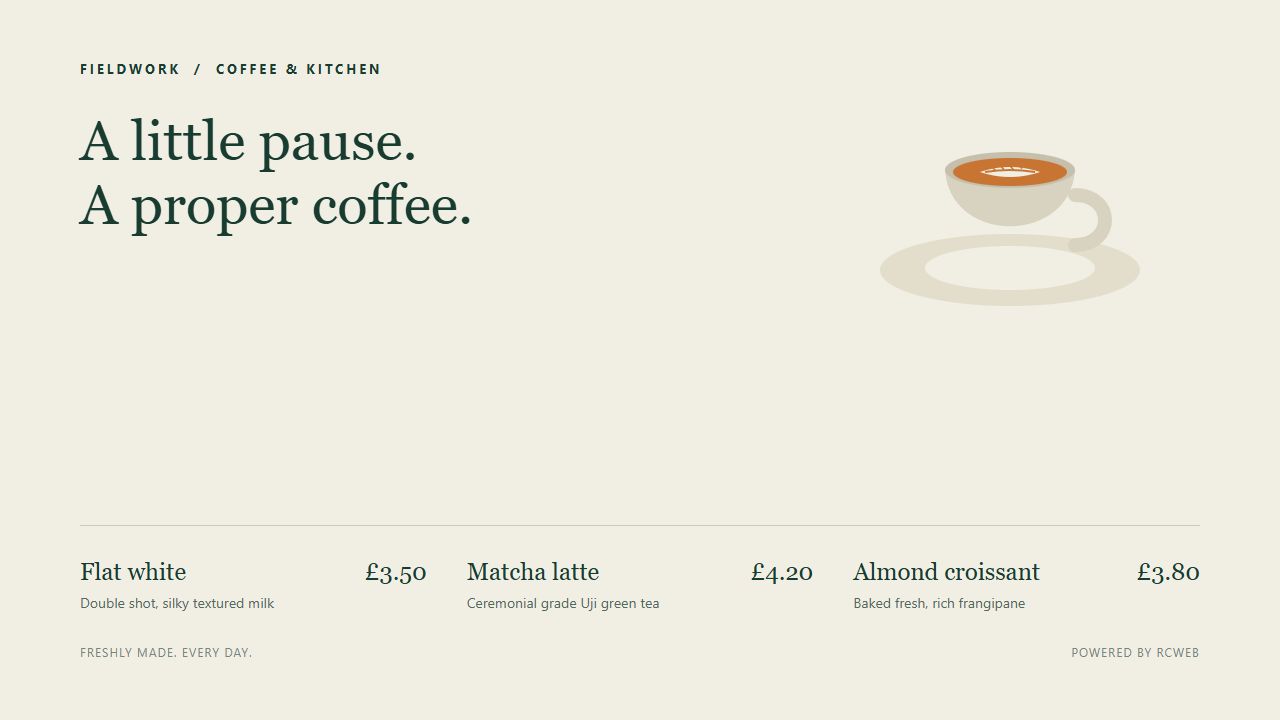 CREATED WITH DEMOSee the actual screen capture
03 / HOW TO SET UP AI DIGITAL SIGNAGE
Bring a screen with a connected RCWeb page and a phone or computer to chat from. This browser-based signage workflow starts with a room code and a simple prompt.
Open RCWeb in the display’s browser. Leave the page connected and note the room code shown on screen.
Open a viewerOpen the AI Assistant, enter that room code and choose Demo. Check the selected screen and wait for it to be ready.
Open the assistantDescribe your sign or start with an example. Send your request, see the result, then ask for any changes.
Find your first ideaA simple way to start. Demo uses Google Gemini Flash Lite with limited free tokens, when available on your RCWeb server. You can also choose your own supported AI provider or a custom AI server.
Setup guideA FEW GOOD QUESTIONS
AI digital signage uses an AI assistant to create or change content on digital displays. With RCWeb, you describe a menu board, promotion, welcome screen or announcement in chat, and the assistant updates your selected, connected screen. You can then refine the text, colours and layout with follow-up messages.
A TV, monitor, laptop or other display running a connected RCWeb page in its browser. The assistant checks the selected browser’s capabilities and screen size. Results depend on the device and browser.
You can use the assistant and the viewer in web browsers. Describe your sign in everyday language; the assistant creates and updates the display for you. Start with Demo without entering an API key, or connect your own supported provider.
Yes. Keep its RCWeb page open and connected to receive changes and screenshot requests. Screen changes are temporary; refreshing or leaving the page can remove them.
The console supports OpenAI, Claude, Google Gemini, DeepSeek, OpenRouter and compatible custom servers. You can also connect an external assistant through MCP. Your chosen provider needs compatible tool support and may charge for usage. Read the connection guide.
GIVE YOUR NEXT IDEA A BIGGER STAGE
Open the assistant. Connect your screen. Start a conversation.